
Employees of CVS Health often need quick access to their work schedule, shift assignments, and time-off requests. In the past, many workers used the CVS mySchedule ESS mobile app to manage their employee schedule directly from their phones.
However, that store-branded scheduling app is no longer available, and CVS has largely transitioned to a generic workforce management application called Reflexis One (ESS 41) along with the web-based mySchedule / ESS system.
This guide explains what happened to the CVS mySchedule ESS app, how the Reflexis One scheduling app works, and how employees can view their CVS work schedule step-by-step.
What Happened to the CVS mySchedule ESS App?
The original “CVS mySchedule ESS” mobile app was a free employee scheduling application that allowed CVS staff to:
- View their weekly work schedule
- Request shift changes
- Submit time-off requests
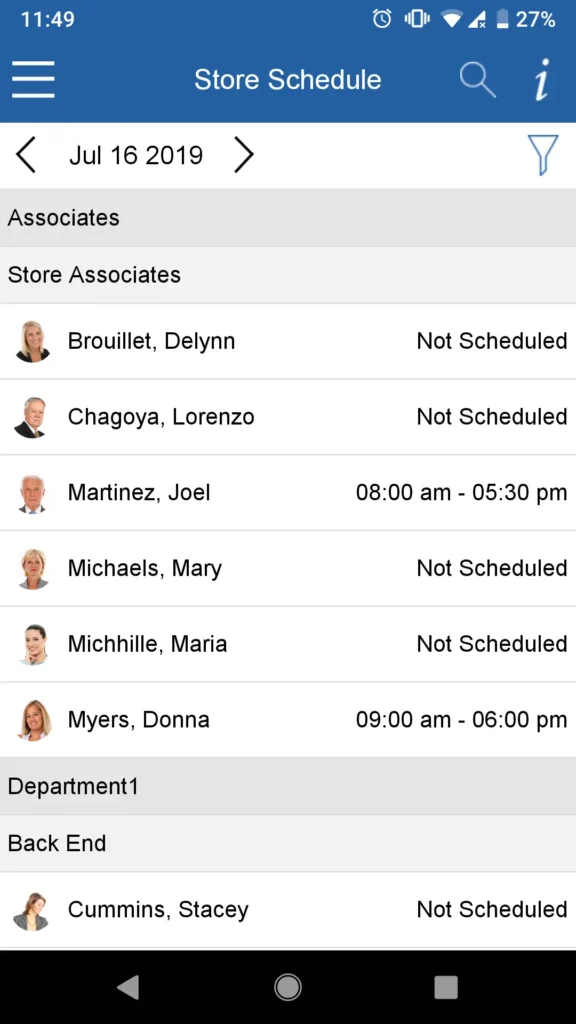
- Check store schedule updates
However, the app is no longer actively distributed.
Known Availability Changes
- The Android version of the CVS mySchedule ESS app was unpublished from the Google Play Store on September 23, 2020.
- Because it was removed from the official store listing, it cannot be installed normally through Google Play anymore.
- Some third-party websites still host APK files, but these are not official CVS sources and may not be secure or supported.
For security reasons, employees should avoid downloading unofficial APK files and instead use current CVS scheduling systems.
What CVS Uses Instead: Reflexis One (ESS 41)?
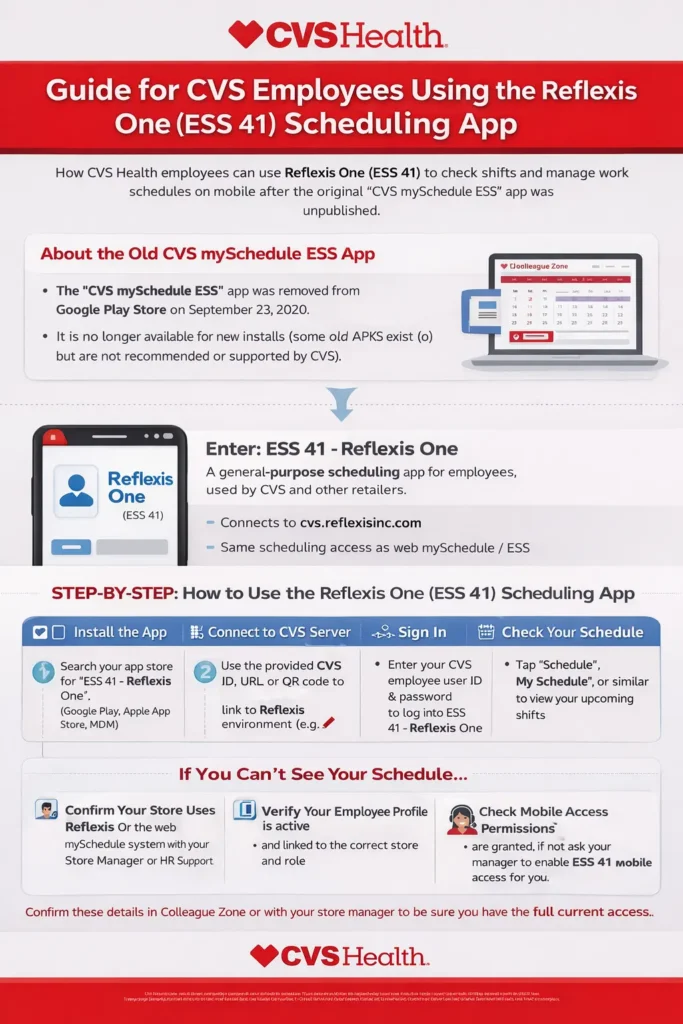
Today many CVS stores use Reflexis workforce management software, often accessed through the ESS 41 – Reflexis One mobile app.
Reflexis One is a generic employee self-service scheduling platform used by major retailers for workforce scheduling, shift management, and time tracking.
CVS connects this system to its internal Reflexis server environment, typically through:
cvs.reflexisinc.com
Once connected, the Reflexis ESS mobile app can display an employee’s CVS schedule, similar to the web-based mySchedule system.
Key Features of the Reflexis One Scheduling App
The ESS 41 – Reflexis One app includes several employee self-service scheduling features.
Common functions include:
- View work schedule
- Check upcoming shifts
- Request day-off or time-off
- Trade shifts with coworkers
- Bid on open shifts
- View timecard details
- Update work availability
- Mobile clock-in using geofencing (if enabled)
These workforce management tools help employees monitor schedules and manage shift availability directly from a mobile device.
How CVS Employees Use Reflexis One to View Their Schedule?
Below is a complete step-by-step guide for accessing your CVS employee schedule through the Reflexis One mobile app.
Step 1: Install the ESS 41 – Reflexis One App
Open the mobile app store on your phone.
Search for:
“ESS 41 – Reflexis One”
Look for the official app published by Reflexis Systems (Zebra Technologies) with the blue icon featuring a person outline.
Tap:
- Install (Android)
- Get (iPhone)
Some CVS locations may distribute the app through an internal employee portal, QR code, or mobile device management system (MDM) instead of the public store listing.
If so, follow the installation instructions provided by your store manager or IT department.
Step 2: Connect the App to CVS Systems
When opening the app for the first time, you will need to connect it to the CVS Reflexis scheduling environment.
The app may request:
- Company ID
- Server URL
- QR configuration code
Your Store Manager (SM) or Pharmacy Manager (RXM) usually provides this information.
Most CVS stores connect through the Reflexis server environment associated with:
cvs.reflexisinc.com
This step links the generic Reflexis One app to CVS’s workforce scheduling system so that your employee schedule data can load correctly.
Step 3: Sign In With Your CVS Employee Credentials
After connecting to the CVS environment, you will see the login screen.
Enter your:
- CVS employee username
- Network password
These are typically the same credentials used on store computers for mySchedule or ESS systems.
Tap Sign In and allow the app a moment to load your employee scheduling data.
If the login fails, confirm your username and password with your store manager or reset your credentials using the CVS password reset process.
Step 4: Open the Schedule Section
After logging in, the Reflexis One dashboard usually displays several workforce management options, such as:
- Schedule
- Requests
- Timecard
- Availability
- Shift Marketplace
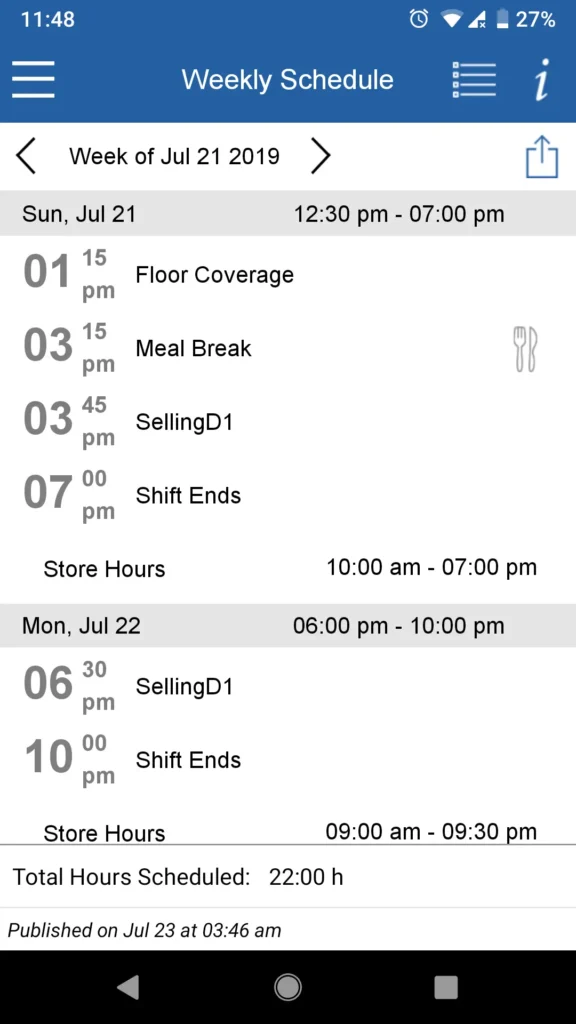
Tap Schedule or My Schedule to view your assigned CVS shifts.
The schedule screen typically displays:
- Shift start and end times
- Work dates
- Store location
- Role or department
Employees can often switch between daily, weekly, or monthly schedule views depending on the configuration.
Step 5: Check Detailed Shift Information
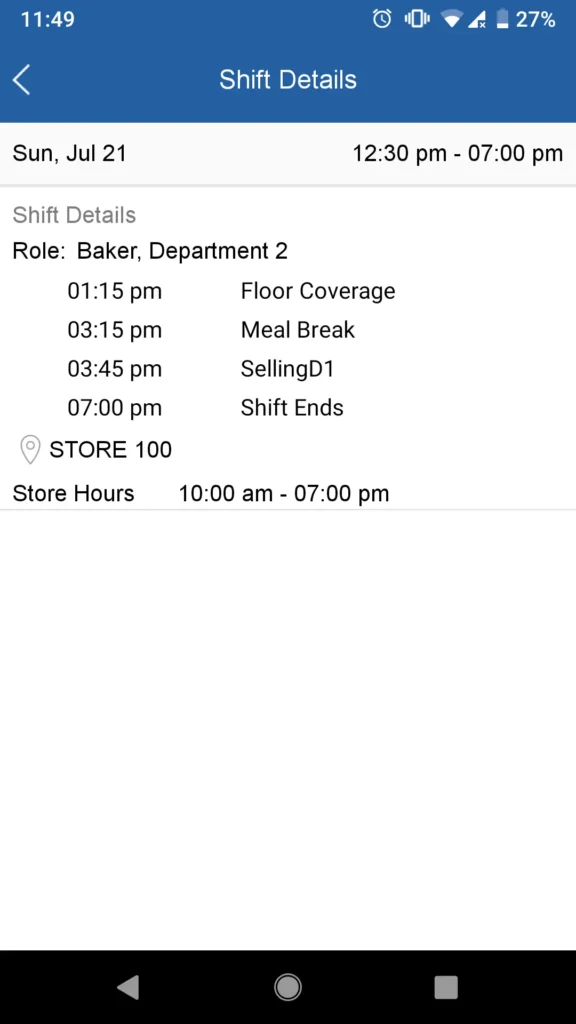
Tap on an individual shift entry to view more details.
Additional information may include:
- Department assignment
- Job role
- Shift duration
- Store location
Make sure the date, time, and time zone match the schedule posted in your CVS store.
If your schedule was recently updated, use the refresh option to reload the latest data.
The manager’s schedule inside mySchedule remains the official source of truth, so always confirm with management if something looks incorrect.
Step 6: Use Additional ESS Self-Service Features
Depending on your store configuration and employee role, the Reflexis app may allow additional employee self-service features.
These can include:
- Submitting time-off requests
- Trading shifts with coworkers
- Bidding on open shifts
- Updating availability
- Reviewing your timecard
- Clocking in using mobile geofencing
Not every CVS location enables all features, so your available options may vary.
What to Do If You Cannot See Your CVS Schedule?
If the Reflexis One app loads but does not display your schedule, try these troubleshooting steps.
Confirm Your Store Uses Reflexis
Ask your Store Manager or Pharmacy Manager whether your location uses:
- Reflexis One / ESS 41
- Web-based mySchedule ESS
- Colleague Zone scheduling tools
Different CVS stores may use different scheduling workflows.
Verify Your Employee Profile
Your manager may need to confirm that:
- Your employee profile is active
- Your store location is correctly assigned
- Your role is linked to the scheduling system
Check Mobile Access Permissions
Some stores must enable ESS mobile access before employees can view schedules through the Reflexis mobile app.
If the app connects but shows no shifts, the issue may require manager verification or internal support.
Key Takeaway
The original CVS mySchedule ESS app is no longer available, but employees can still view their CVS work schedule using:
- Reflexis One (ESS 41) mobile app
- Web-based mySchedule ESS
- Colleague Zone employee portal
These systems allow staff to check shifts, request time off, update availability, and manage scheduling tasks from both desktop and mobile devices.
For the most accurate information, always confirm scheduling access with your store manager or HR support team at CVS Health.