
CVS employees can view their work schedule online using internal workforce tools provided by CVS Health. Depending on your store configuration, employee role, and system access, you can check your CVS shift schedule through either the Colleague Zone employee portal or the mySchedule ESS system (Reflexis platform).
These tools allow employees to check upcoming shifts, manage availability, review time-off requests, and monitor weekly schedules from a desktop browser or mobile device.
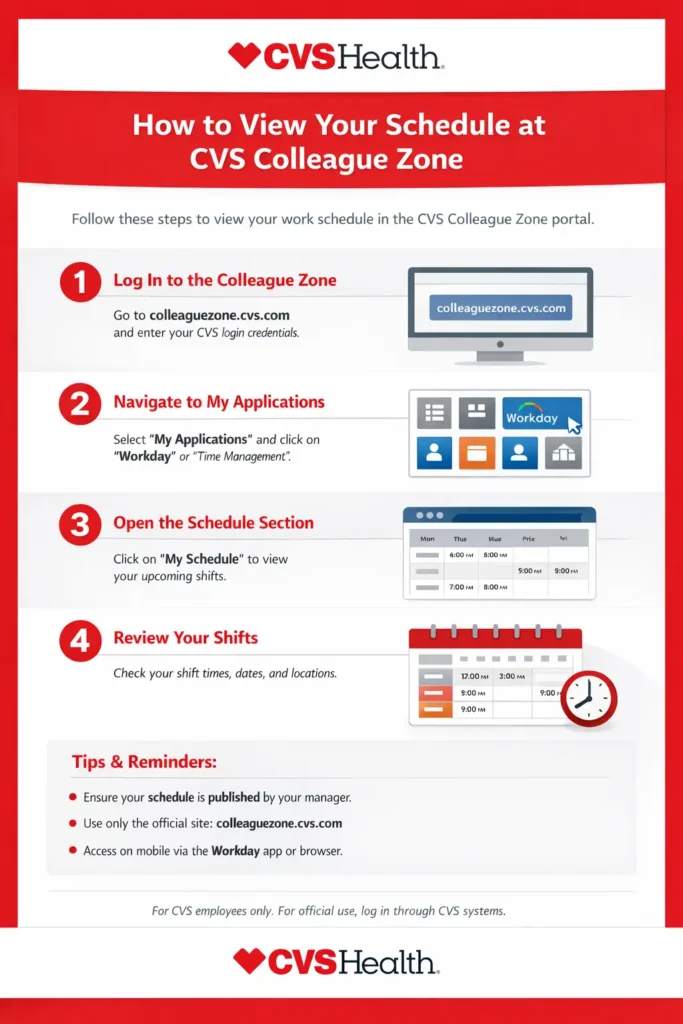
Below is a step-by-step guide to accessing your CVS employee schedule online.
Option 1: View Your Schedule in Colleague Zone (Employee Portal)
Colleague Zone is the main CVS employee self-service platform used for accessing internal resources such as pay information, HR services, benefits, and scheduling tools.
Step-by-Step Instructions
Step 1 – Open the official Colleague Zone portal
Go to the official CVS employee login page:
This secure portal provides access to CVS workforce tools, employee resources, and scheduling systems.
Step 2 – Sign in using your CVS credentials
Enter your CVS employee login information, such as:
- 7-digit Employee ID (EID) for retail store colleagues
- Contractor ID or C-ID for corporate employees
- Your CVS network password
These credentials are the same ones used to log into CVS systems at work.
Step 3 – Locate the Schedule or Workforce menu
After logging in to Colleague Zone, navigate to sections such as:
- MySchedule
- Schedule
- Workforce Management
- Time & Attendance
These menus are typically located in the main dashboard or navigation panel.
Step 4 – Open your shift schedule
Select Schedule to view:
- Upcoming shifts
- Weekly work schedule
- Start and end times
- Assigned store location
- Shift changes or updates
Schedules are usually displayed in a calendar or weekly format, making it easy to check your CVS work hours and shift assignments.
Option 2: Access the mySchedule ESS System (Reflexis Platform)
Many CVS retail stores and pharmacy teams still use the mySchedule ESS workforce management platform built on Reflexis scheduling software.
This system allows employees to view store schedules, manage shifts, and check availability.
Step-by-Step Instructions
Step 1 – Open the mySchedule ESS login page
Go to the official CVS Reflexis ESS scheduling portal:
https://cvs.reflexisinc.com/kernel/views/authenticate/web/CVS.view
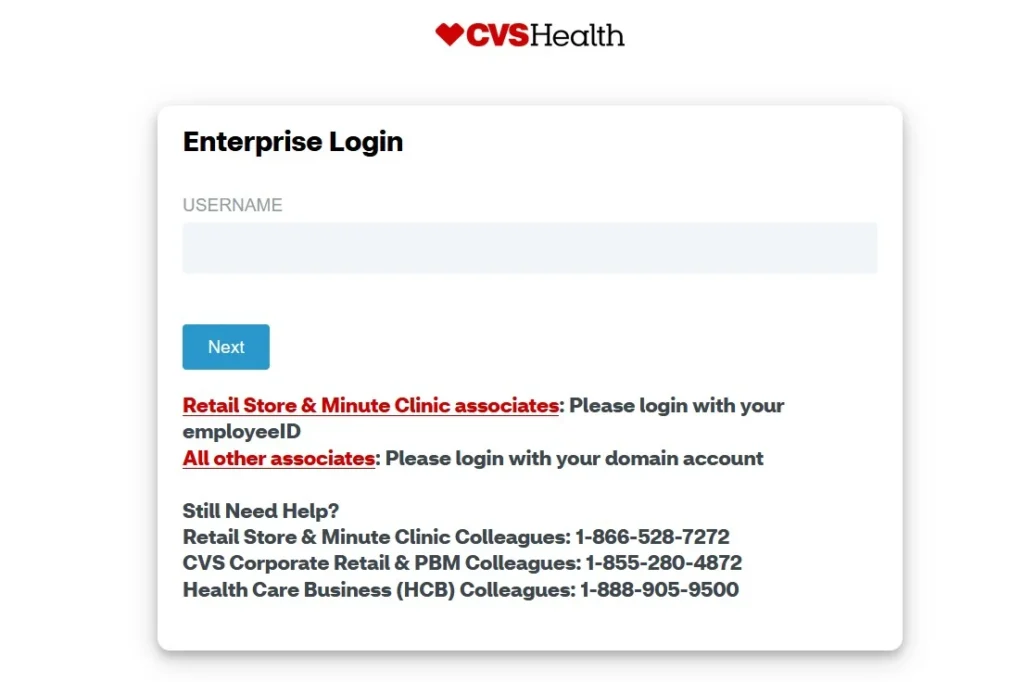
This is the employee scheduling system used by CVS stores for managing workforce schedules.
Step 2 – Log in with your CVS network credentials
Use the same employee login credentials you use for:
- CVS store systems
- POS workstation login
- internal CVS network access
If you are unsure about your login details, your Store Manager (SM) or Pharmacy Manager (RXM) can help confirm them.
Step 3 – Navigate to MySchedule
After logging in:
- Open the left navigation panel
- Select MySchedule
- Click Schedule or Store Schedule Template
Step 4 – Filter the schedule to your name
You can:
- Filter by employee name
- View published schedules
- Check future shifts
- Monitor schedule updates or changes
This feature helps employees quickly check assigned work hours and shift rotations.
Option 3: Use the mySchedule ESS Mobile App / Reflexis One
Official App doesn’t available on the playstore. Use Reflexis One instead of.
Step 1: Install the Reflexis One (ESS 41) App
Download the ESS 41 – Reflexis One app from the Google Play Store or Apple App Store. This workforce management and employee self-service (ESS) scheduling app is commonly used by CVS Health employees to access their work schedule and shift details.
Step 2: Connect the App to the CVS Reflexis Server
Open the app and enter the company ID, server URL, or QR code provided by your Store Manager (SM) or Pharmacy Manager (RXM) to connect the app to the CVS Reflexis scheduling environment.
Step 3: Sign In With Your Employee Credentials
Log in using your CVS employee username and network password (the same credentials used for mySchedule / ESS systems on store computers).
Step 4: Open the “My Schedule” Section
After logging in, tap Schedule or My Schedule to view your upcoming shifts, work hours, and weekly schedule.
Step 5: View Your Shift Details
Tap any shift to see start time, end time, store location, role, and schedule updates related to your CVS work schedule.
Roles That Commonly Use the CVS Scheduling System
The mySchedule ESS platform is typically used by:
- Front store associates
- Shift supervisors
- Pharmacy technicians
- Retail store staff
Some roles, such as store managers, pharmacists, or pharmacy managers, may have different scheduling access or management tools.
What to Do If You Cannot See Your Schedule?
If your CVS employee schedule is not visible, try the following steps:
Confirm which scheduling system your store uses
Some locations use Colleague Zone scheduling, while others still rely on Reflexis mySchedule ESS.
Check that your employee profile is active
New hires may not appear in the system until the store manager publishes the schedule.
Verify your login credentials
Incorrect passwords or expired credentials can prevent access to CVS employee portals.
Contact your manager or HR support
If the issue continues, your Store Manager or Pharmacy Manager can escalate the issue to CVS IT or HR support.
Quick Summary
CVS employees can check their work schedule online using the following systems:
| Tool | Purpose |
|---|---|
| Colleague Zone | Main CVS employee portal for HR, payroll, and scheduling |
| mySchedule ESS (Reflexis) | Workforce scheduling system used by many CVS retail stores |
| mySchedule ESS Mobile App | Optional mobile scheduling access for viewing shifts and requesting time off |
These tools help employees monitor shifts, manage work availability, and stay updated on schedule changes.